
The Shop Owner's Guide to the AI Galaxy: Pulling Your Tekmetric Report With Claude
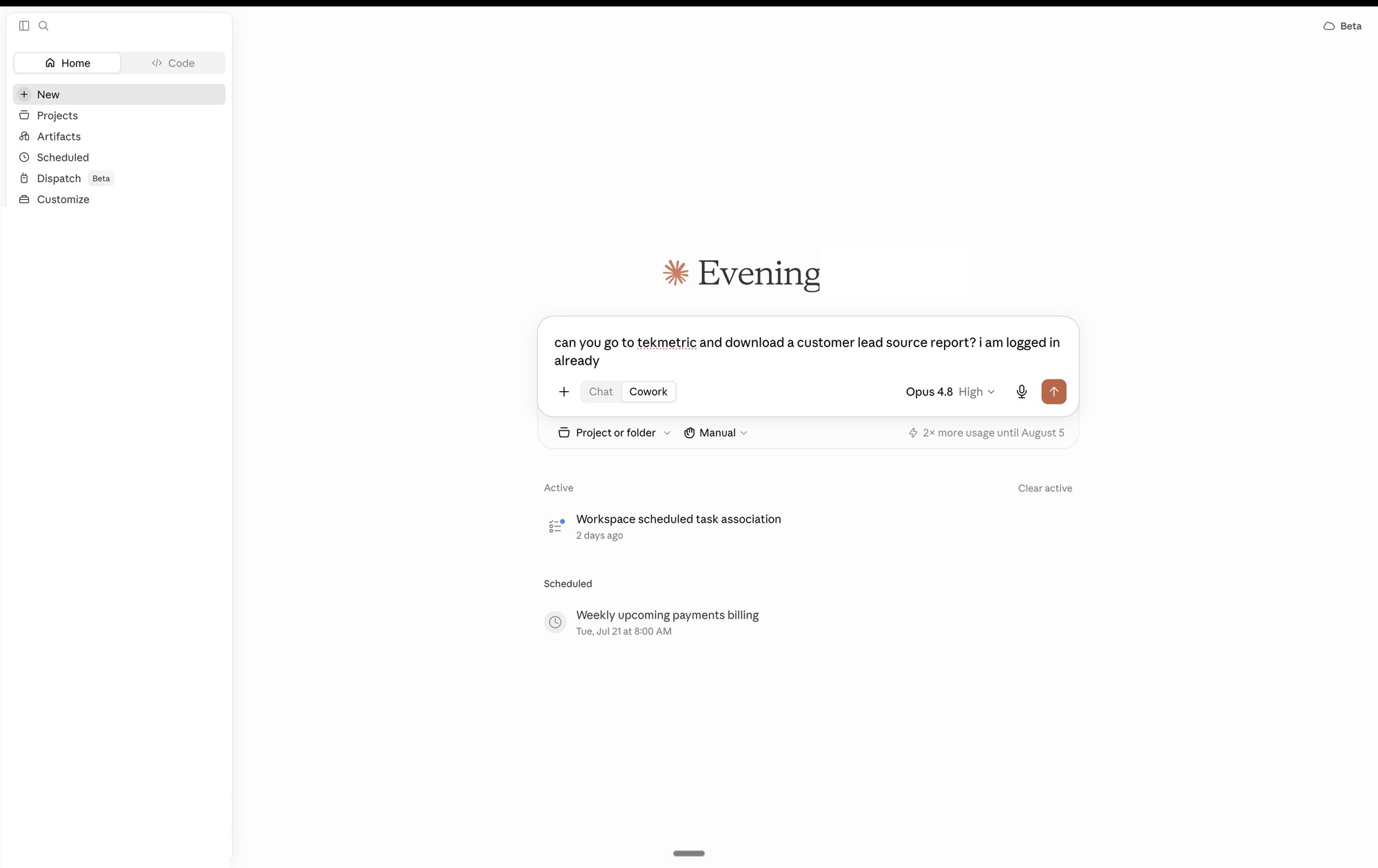
If you have never used Claude before, this is a good first thing to try. It is simple, it is useful, and it shows you what the tool can actually do for your shop.
Here is the task. Instead of logging into Tekmetric, clicking around, and exporting your customer lead source report by hand, you are going to ask Claude to do it for you. It opens your browser, goes to Tekmetric, finds the report, and downloads it. You just watch.
We picked this one because most shop owners want to know the same thing: which marketing is actually bringing in revenue. That report has the answer, and getting it should not take five minutes of clicking.
What you need first
This is a one-time setup. Once it is done, you never do it again.
- The Claude desktop app on Mac or Windows. You can download it here.
- A Claude Pro plan (or higher). The feature we are using, Cowork, needs a paid plan.
- The Claude in Chrome connector turned on. In the desktop app, click your initials in the bottom-left corner, go to Settings, turn on Claude in Chrome, and install the extension when it asks. It works in Chrome or Edge.
- Be logged into Tekmetric in your browser already.
That is the whole setup. Now the fun part.
Step 1: Open Cowork
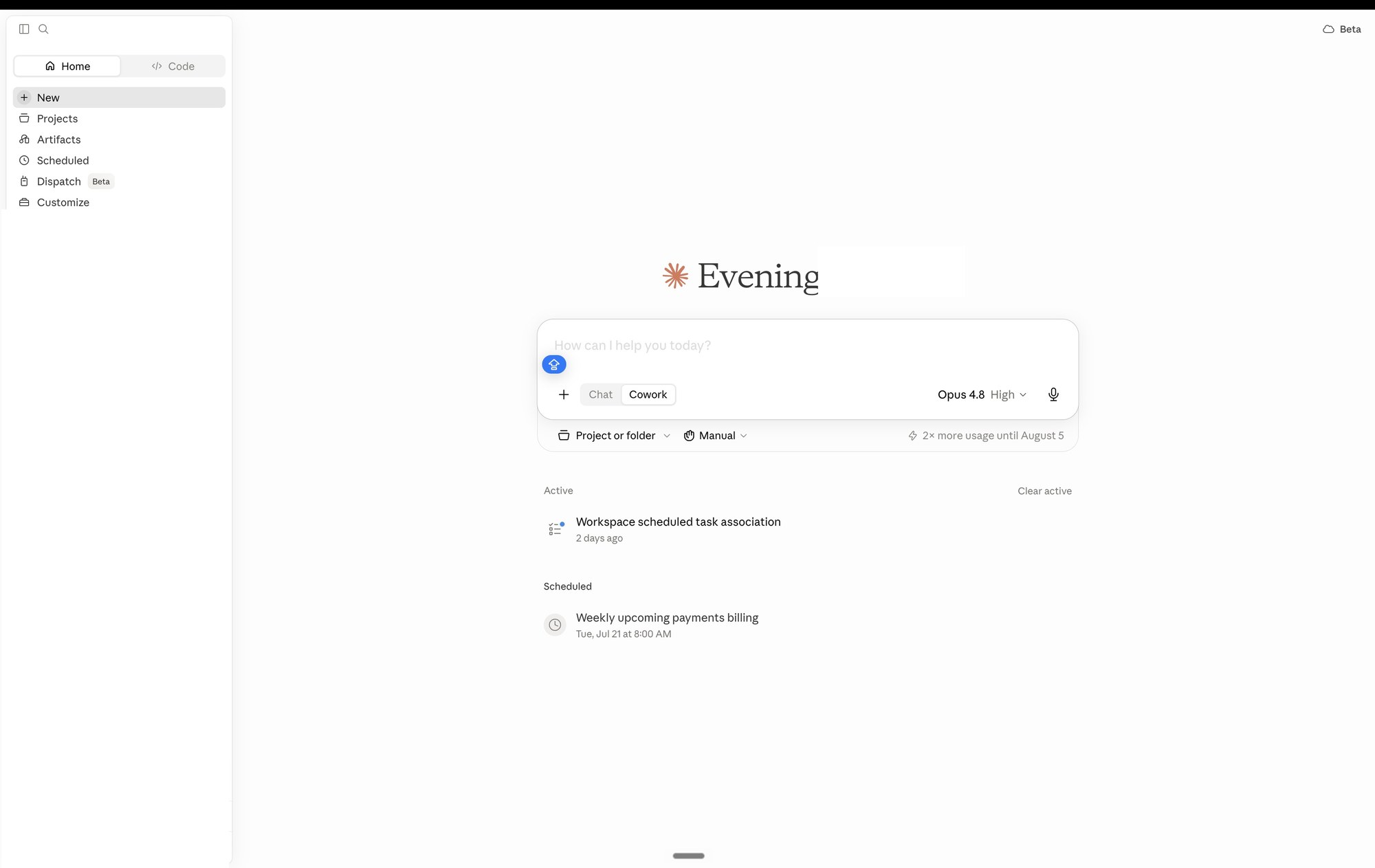
Open the Claude desktop app and start a new chat. In the message box you will see two options, Chat and Cowork. Click Cowork. That is the mode that lets Claude actually go do things for you instead of just talking back.
Step 2: Ask for the report
Type your request in plain English. Here is the exact wording we used:
can you go to tekmetric and download a customer lead source report? i am logged in already
Notice we told it we are already logged in. That saves it a step. Hit enter.
Step 3: Let it into your browser
The first time, Claude will ask permission to use your browser. Approve it. You can set it to check with you before every action, or let it run on its own. For your first time, having it ask before acting is a nice way to see exactly what it is doing.
Step 4: Watch it work
Claude opens Chrome, goes to Tekmetric, and finds your Customer Lead Source report. It narrates each step as it goes, clicking, reading the page, and setting the report to show every source before it exports.
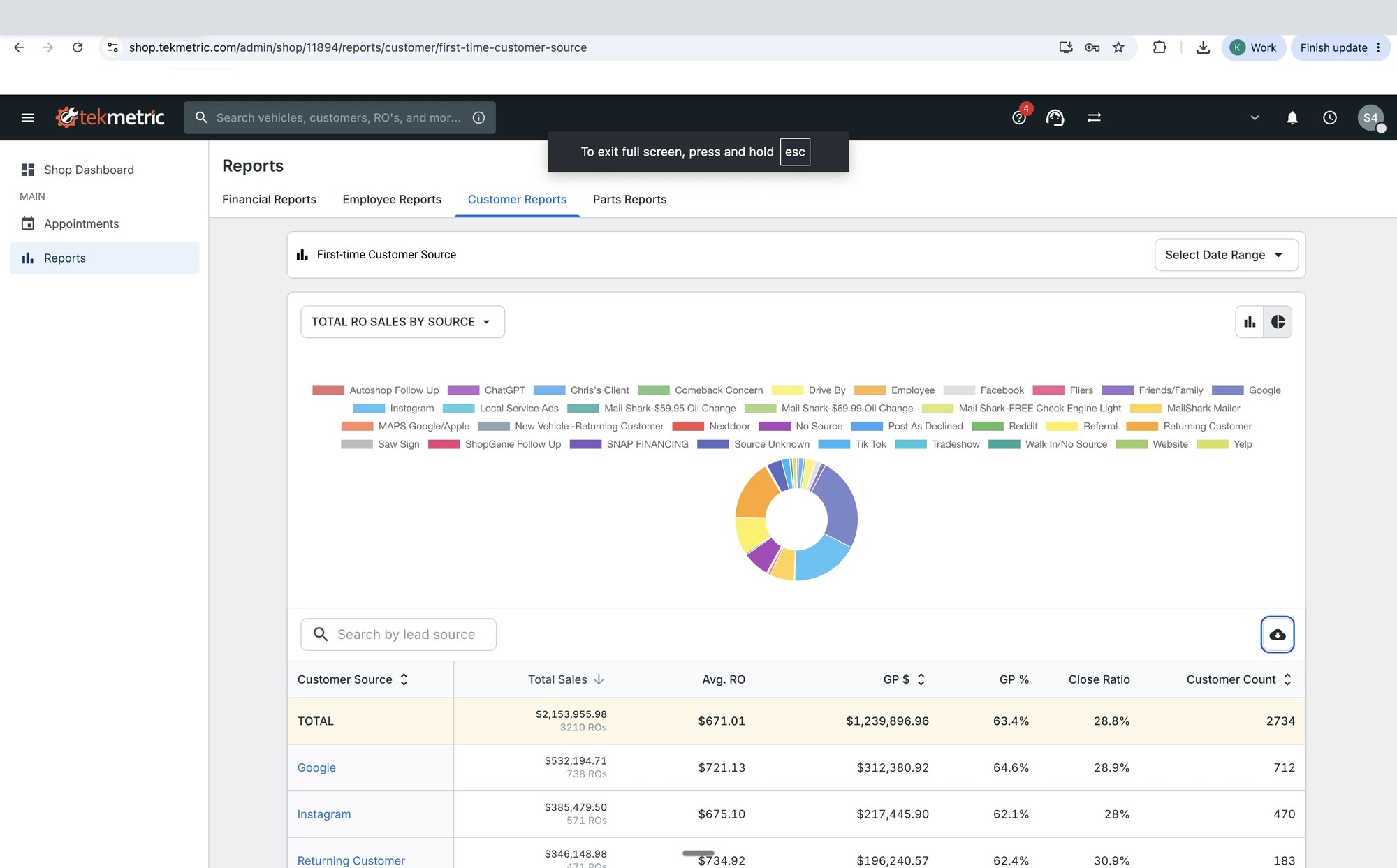
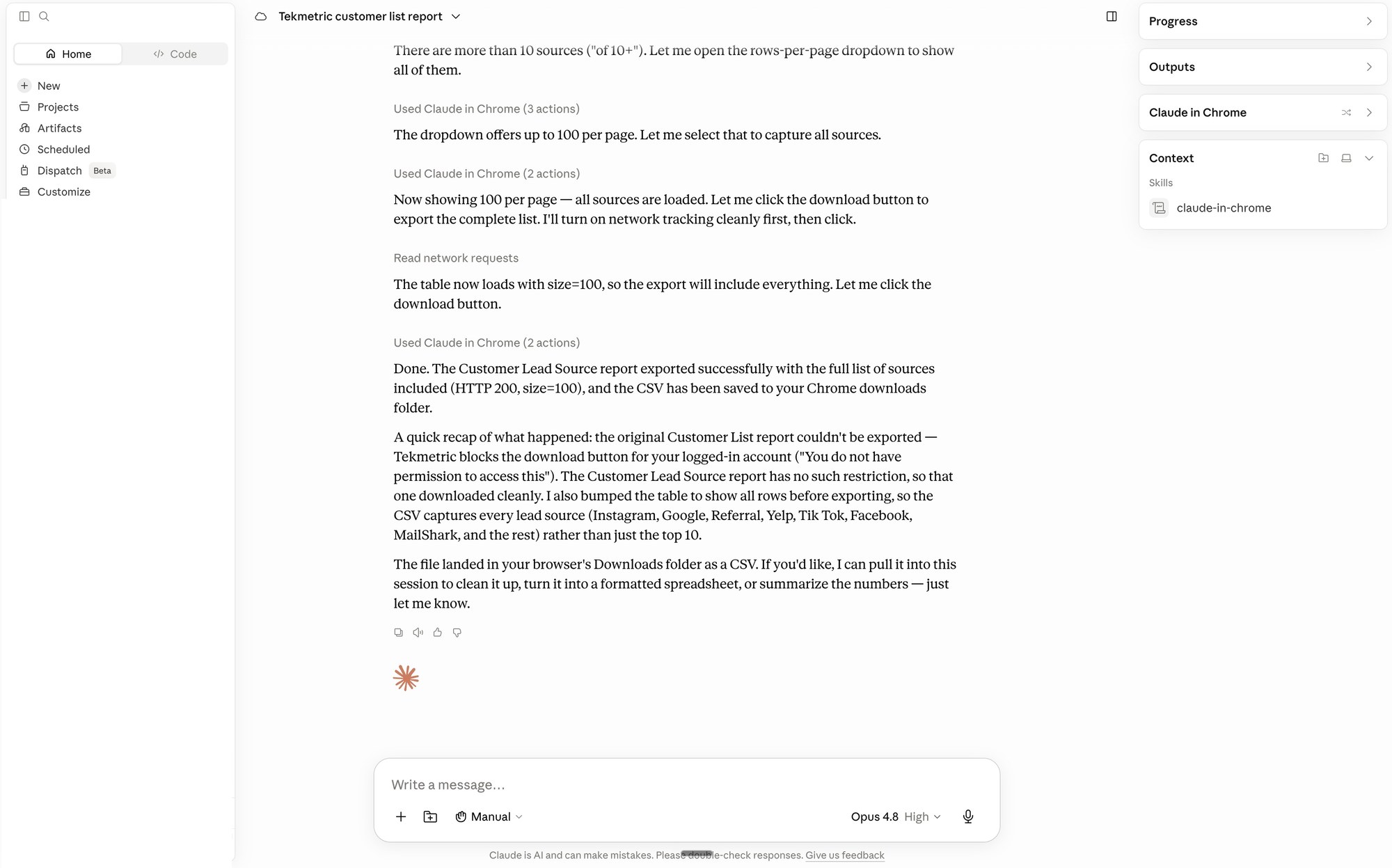
One nice touch: in our run, Claude noticed the export was only grabbing the top 10 sources, so it went back and changed the setting to include all of them before downloading. You did not have to catch that. It did.
Step 5: Done
When it finishes, Claude tells you the report exported and where it saved. The CSV lands in your Downloads folder.
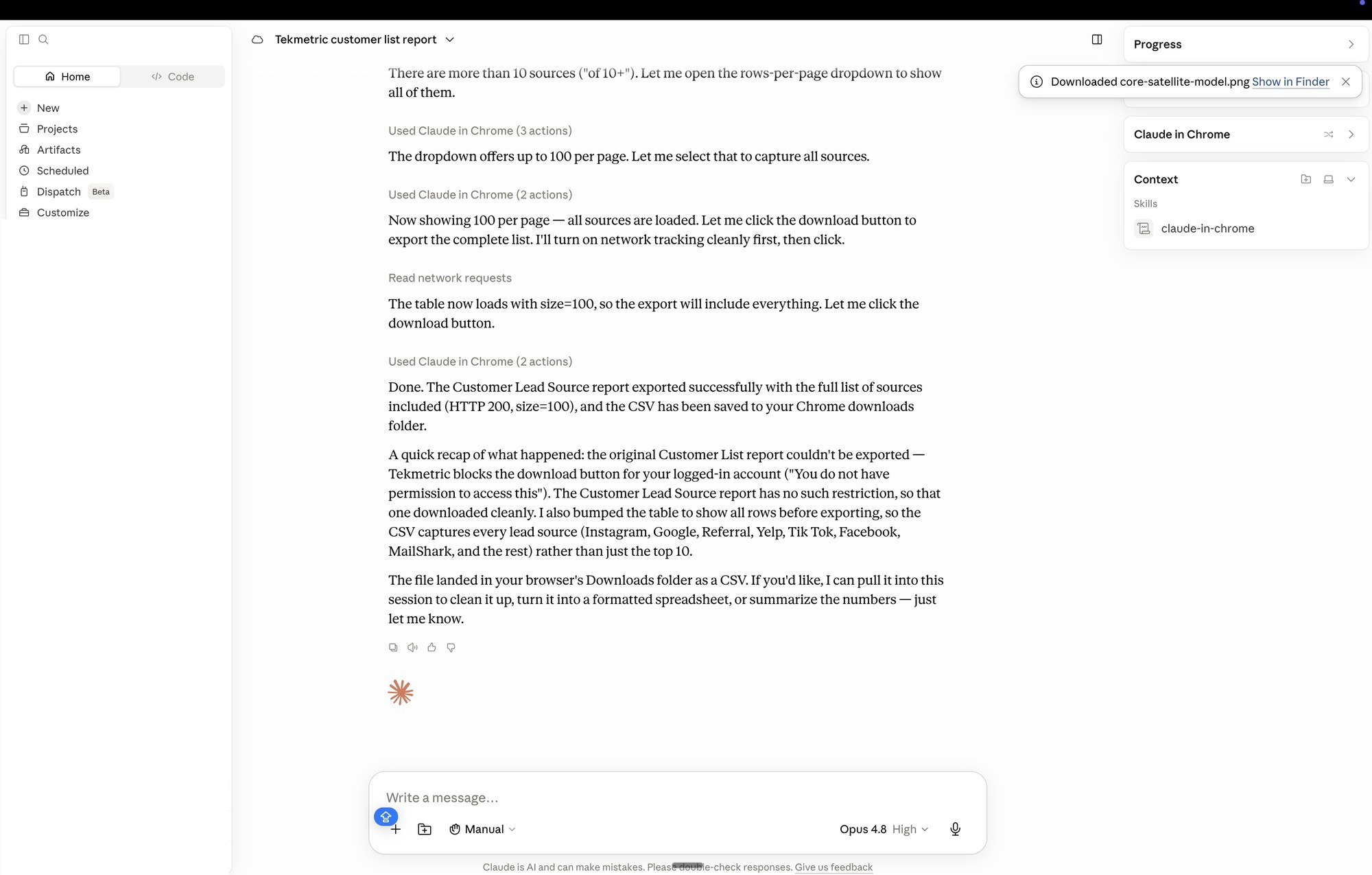

That is it. You just pulled a real report out of your shop management system without touching it.
Want to go a step further?
You have the file. Now you can have Claude actually read it. Drag the CSV into a new Claude chat and try any of these:
- “Rank my lead sources by total revenue, highest first.”
- “Which channels bring in a lot of customers but not much revenue?”
- “Make me a simple table: channel, number of customers, total revenue, and revenue per customer.”
- “If I had to cut one marketing channel next month, which one looks weakest, and why?”
- “Which sources have the best close ratio?”
You do not need to know the perfect question. Ask it the way you would ask a person, then follow up.
This is the kind of small task that adds up. Once you are comfortable letting Claude grab a report for you, you start finding a dozen other things it can take off your plate.